
Integrations · Shopify
Setup guide for Dome + Shopify
Connect your Shopify store to Dome so you can deploy an AI chat widget on your storefront and attribute conversations to commerce activity.
What Dome does with Shopify
Dome integrates your Shopify store with Dome chatbots, which lets you:
- Connect one or more Shopify stores to your Dome organization via OAuth.
- Deploy a chat widget to your live theme using a Shopify App Embed (no manual ScriptTag paste for new installs).
- Sync store context such as products, orders, and customers so the assistant can support shoppers more effectively.
Connect Shopify to Dome
- Log in to your Dome account.
- Open Integrations (/integrations).
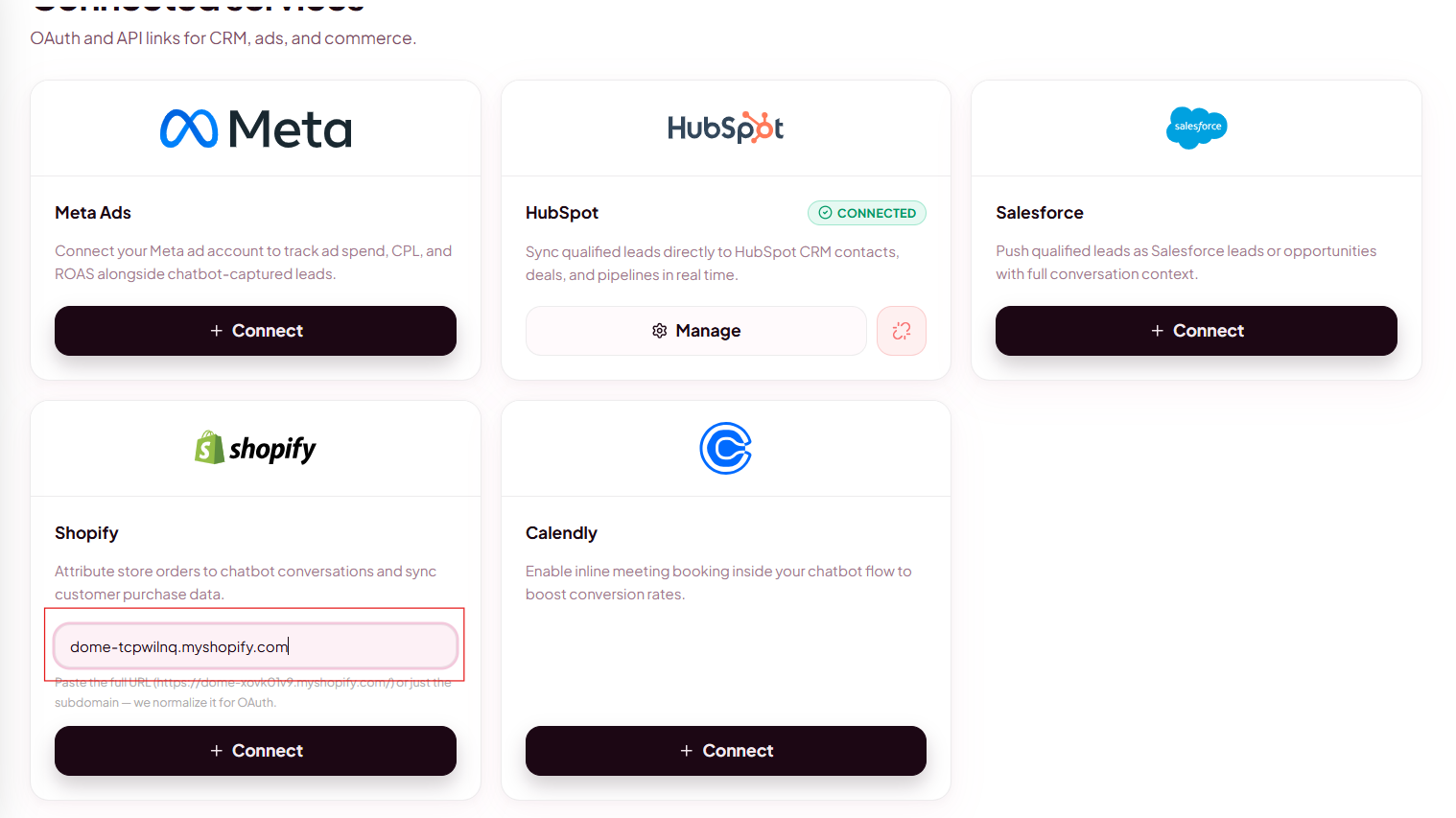
- Find the Shopify card and enter your store domain (for example
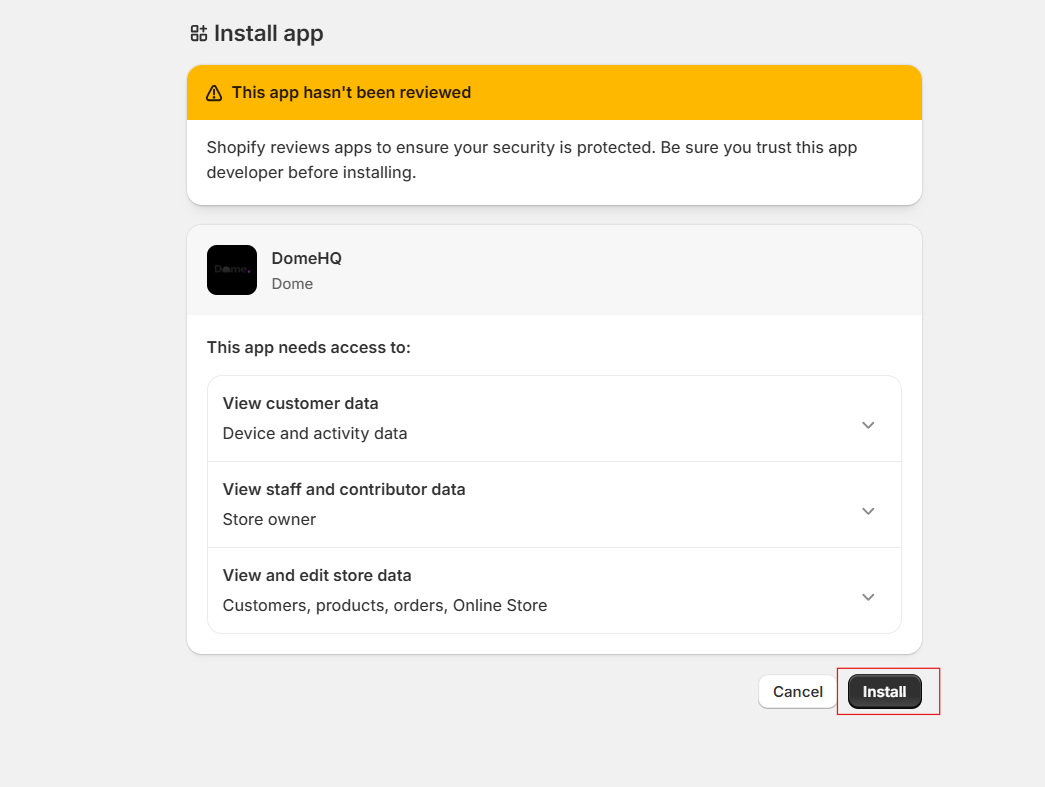
your-store.myshopify.com). - Click Connect. You are redirected to Shopify to install and authorize Dome.
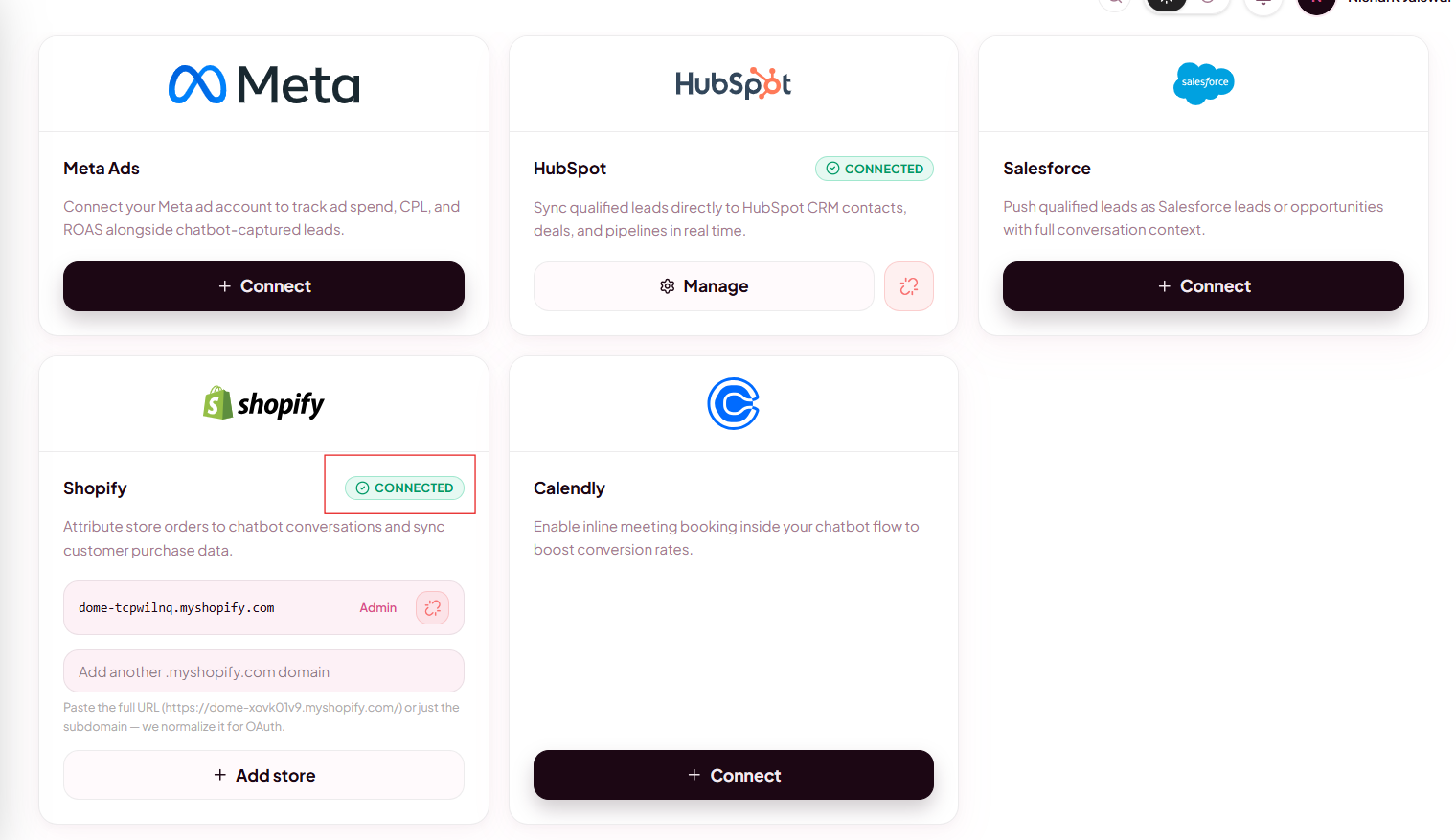
- Review the requested permissions, then approve. Shopify redirects you back to Dome with a Connected store listed on the Shopify card.
Deploy the chat widget to your storefront
Connecting Shopify alone does not show the chat bubble. You still need to deploy a chatbot and enable the theme App Embed.
1. Prepare the storefront in Dome
- Open Chatbots and edit (or create) the bot you want on Shopify.
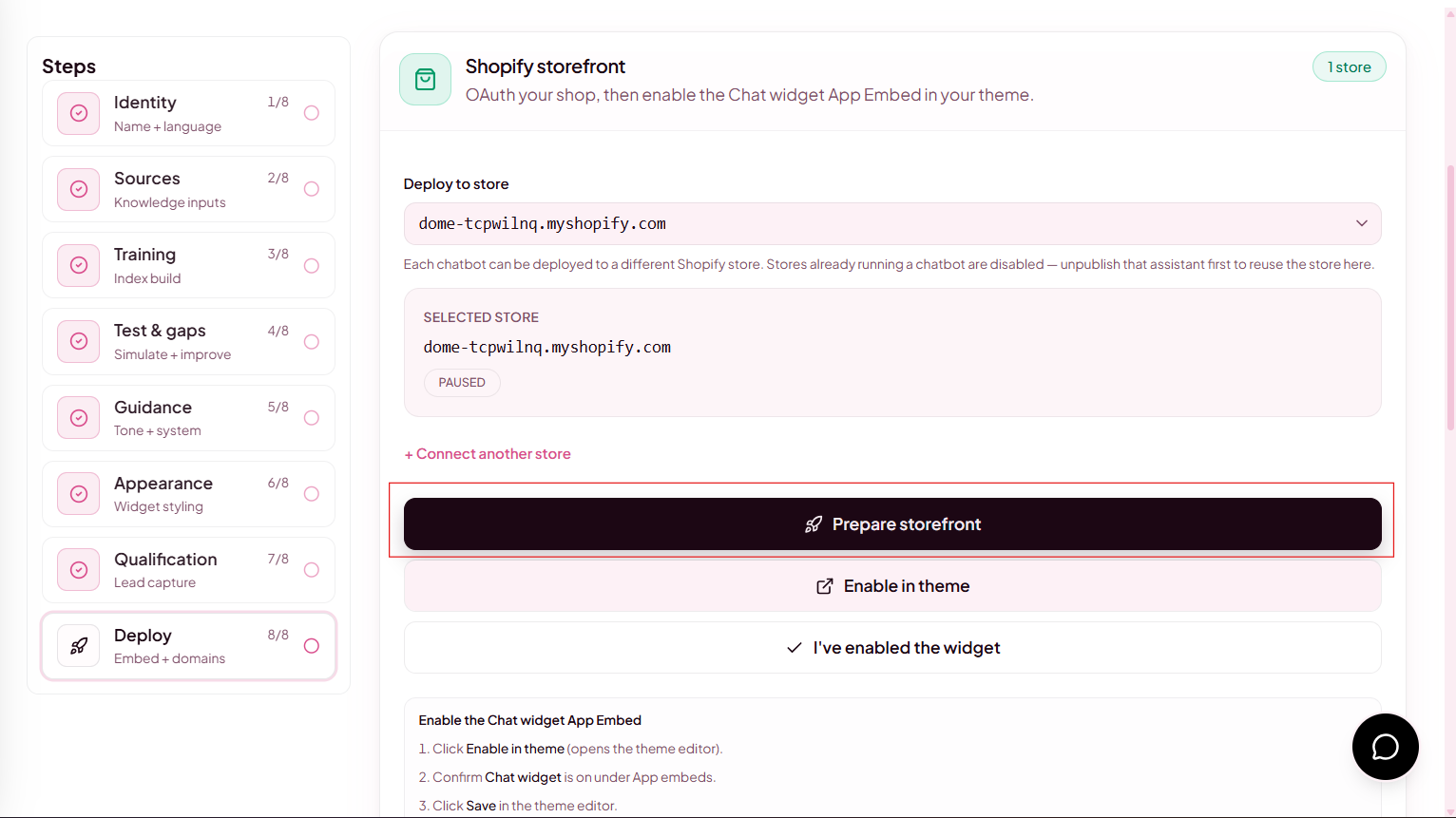
- Go to the Deploy step in the chatbot setup wizard.
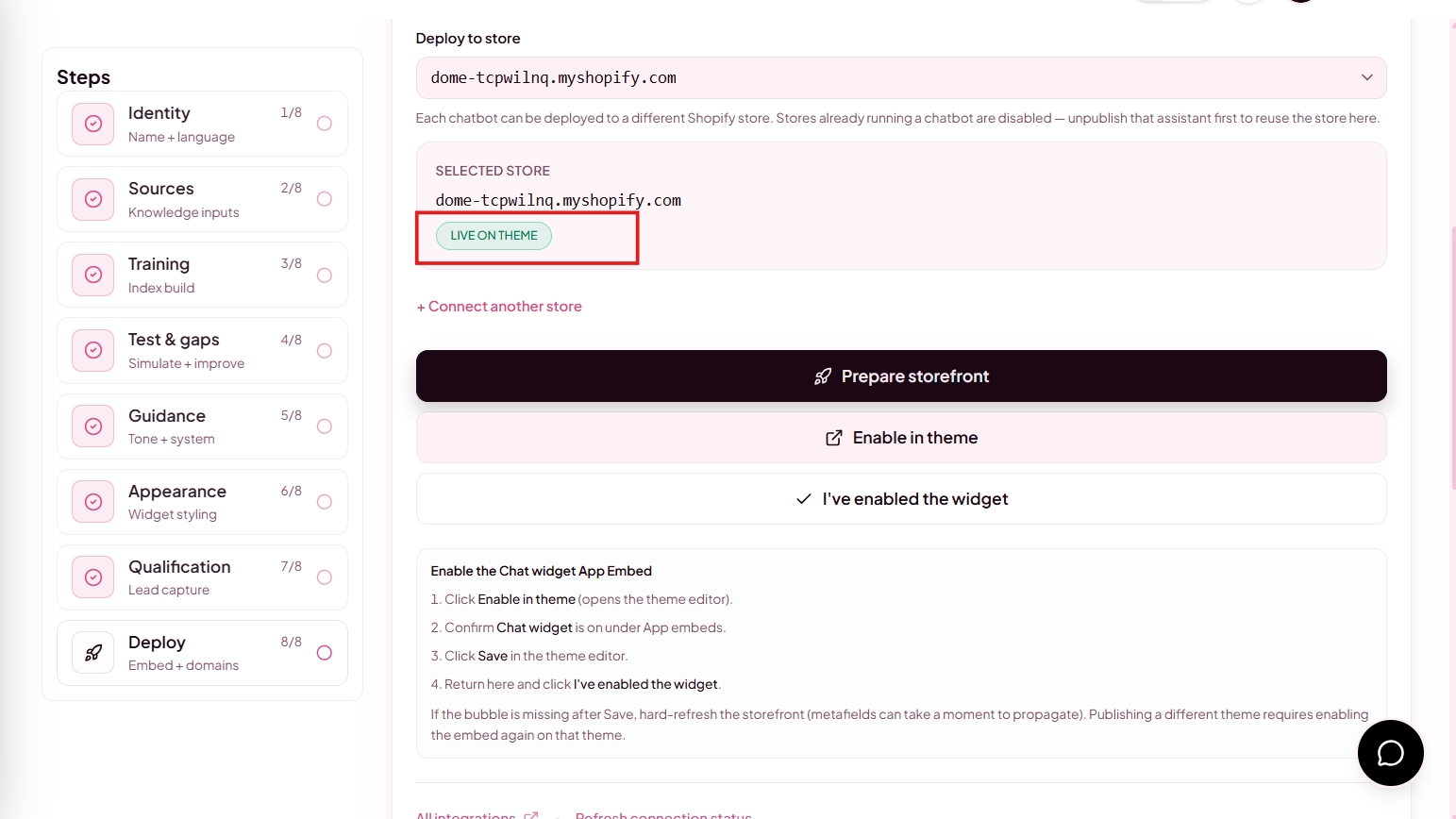
- Select the connected Shopify store (or connect a new one from that step).
- Click Prepare storefront. Dome writes the settings your theme embed needs.
2. Enable the App Embed in Shopify
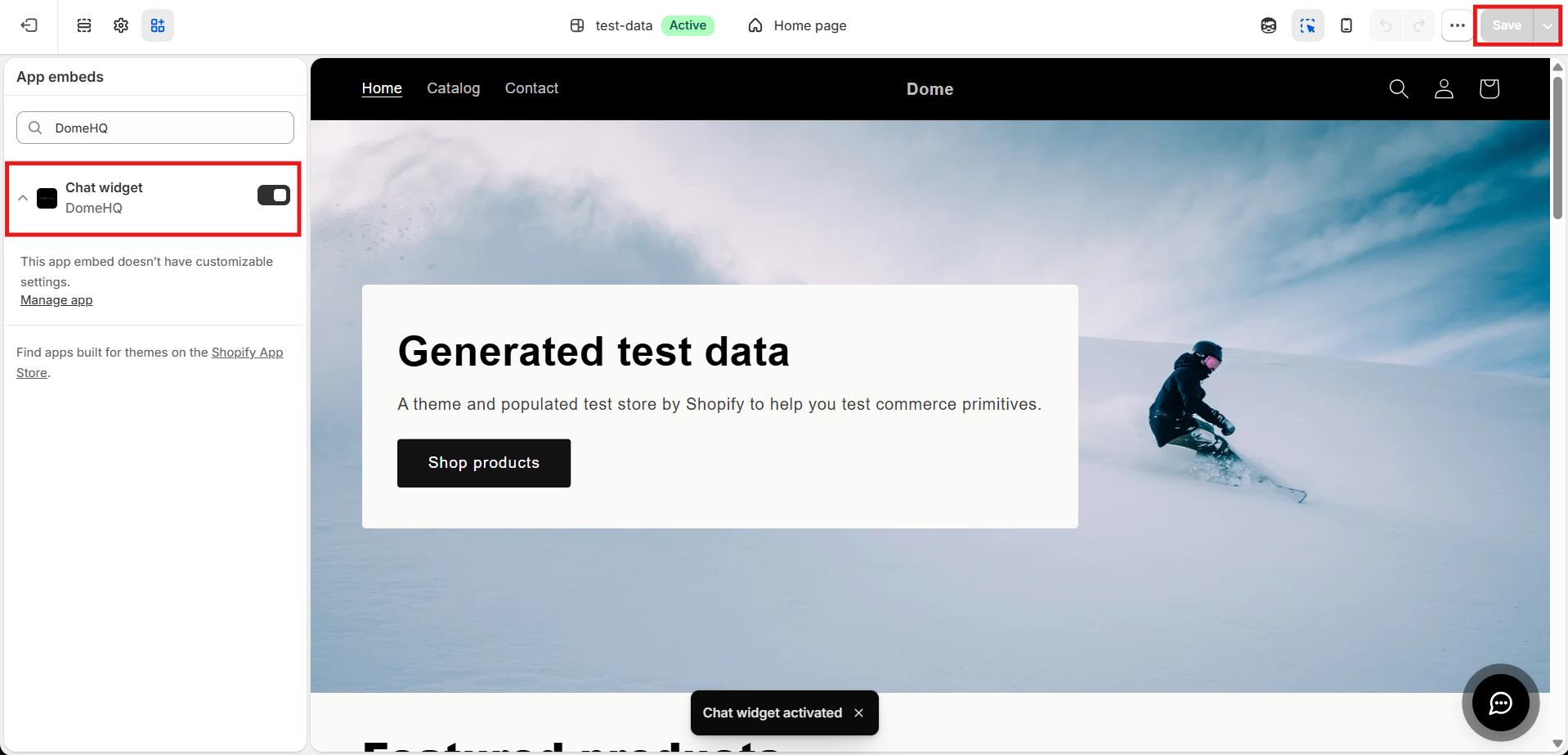
- In Dome, click Enable in theme. This opens the Shopify theme editor with the Dome chat App Embed ready to activate.
- In the theme editor, confirm the Dome Chat (or Dome) app embed is toggled on.
- Click Save in the theme editor.
- Return to Dome and click I've enabled the widget (or wait for status to refresh) until you see Live on theme.
Use the app
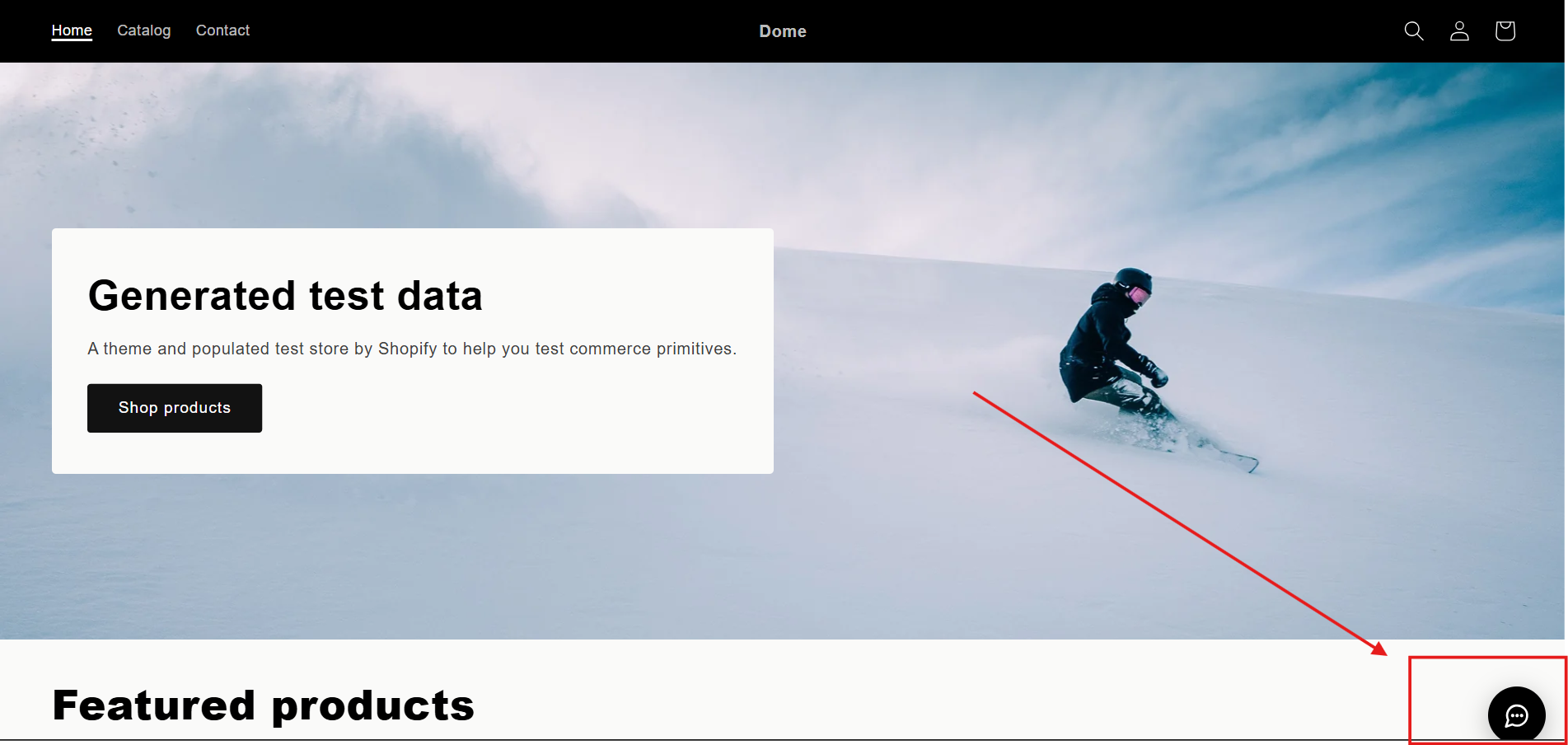
- Visit your live Shopify storefront. The Dome chat widget should appear according to your chatbot styling and placement.
- Conversations and qualified leads appear in Dome under Leads / conversations as visitors chat.
- Keep the chatbot marked live/active in Dome so the storefront widget stays available.
Disconnect Shopify from Dome
- Open Integrations in Dome.
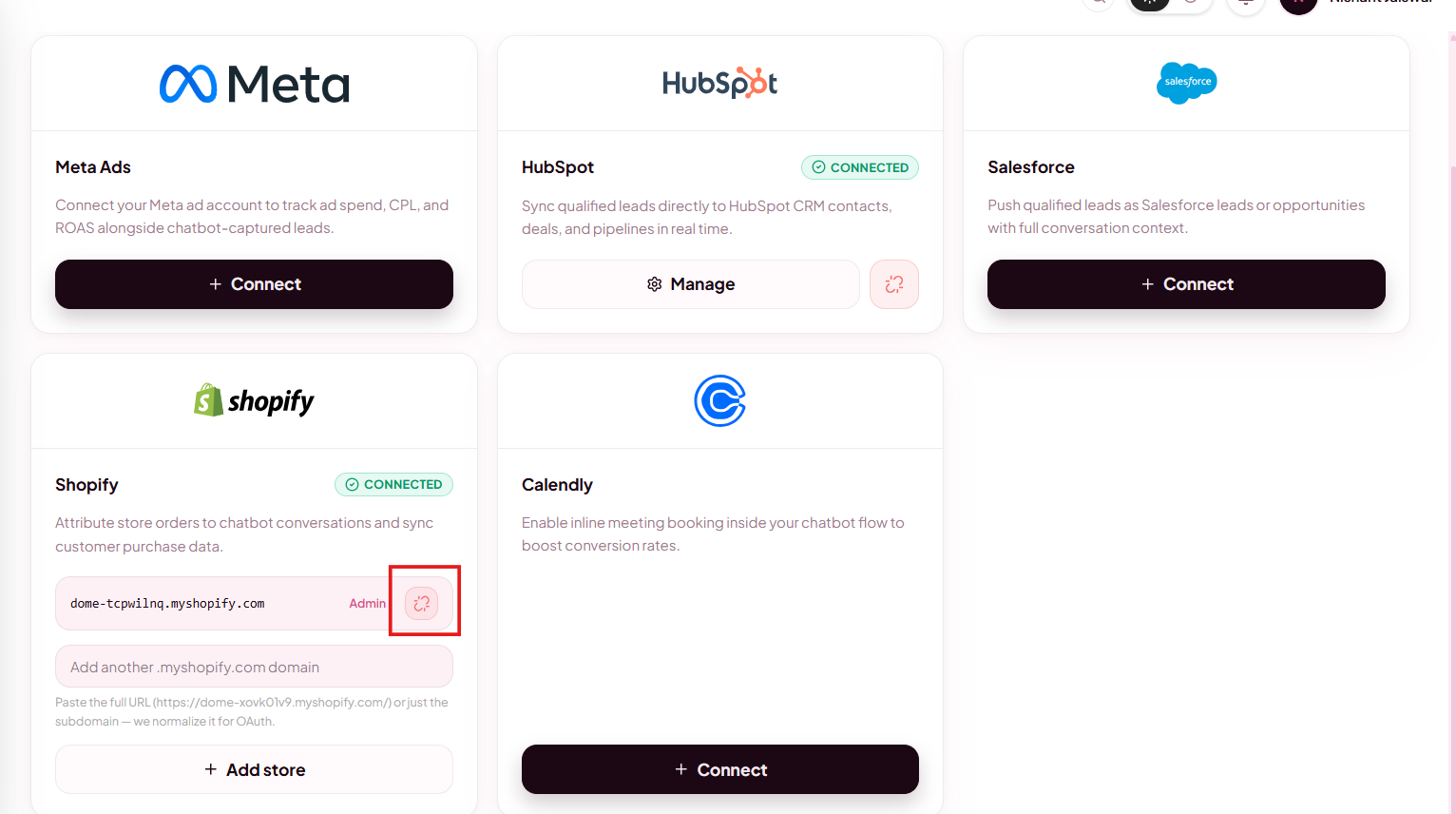
- On the Shopify store row, click Disconnect.
- Confirm in the dialog. If chatbots are live on that store, they are listed and will be unpublished when you confirm.
After disconnect, the storefront widget goes offline. To go live again, reconnect the store, then run Prepare storefront and enable the theme App Embed from the chatbot Deploy step.
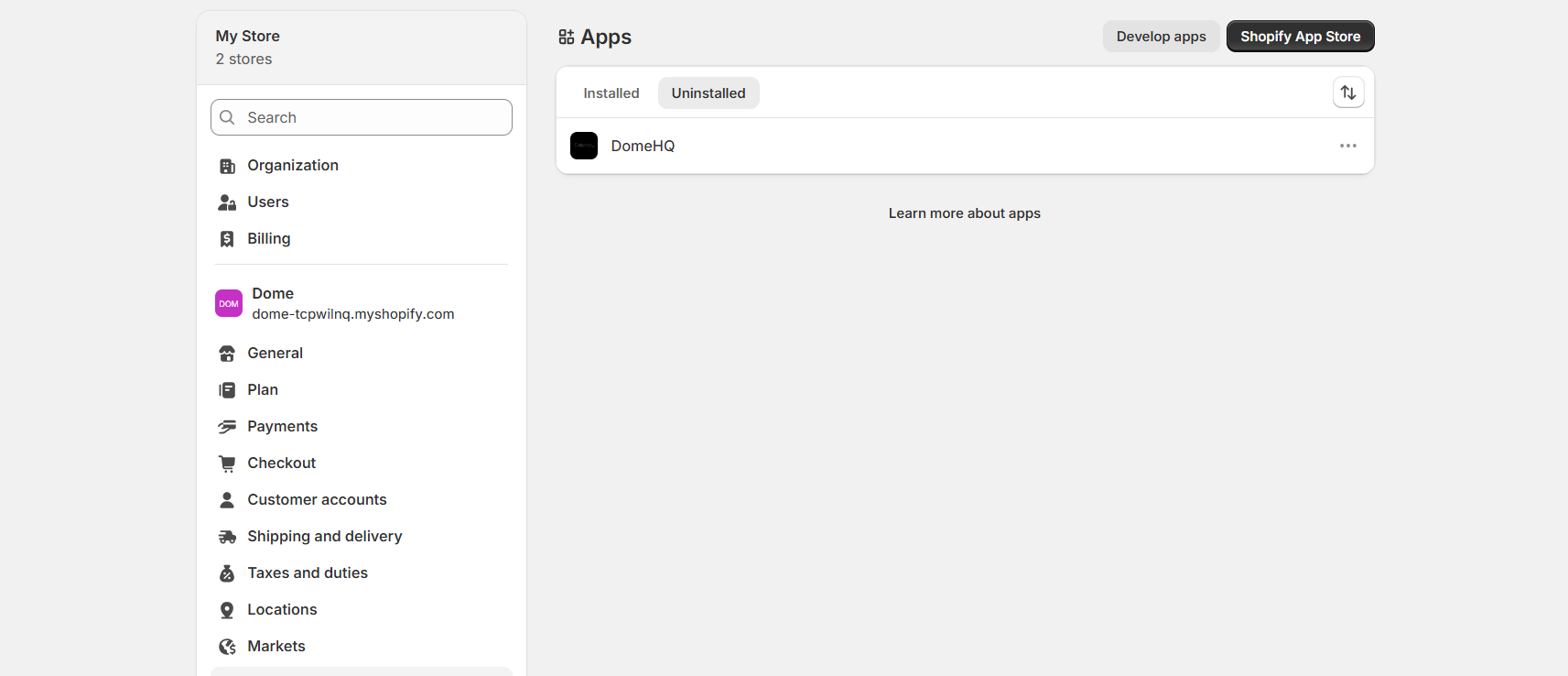
Uninstall from Shopify Admin
If the app remains listed in Shopify after disconnecting (or programmatic uninstall failed), remove it manually:
- In Shopify Admin go to Settings → Apps and sales channels.
- Locate DomeHQ (or Dome) and uninstall.
- Optionally disable the App Embed in the theme editor if it is still listed.
Potential consequences to user data
- Disconnect in Dome: Automatically unpublishes chatbots bound to that store, stops API access, clears stored Shopify credentials, and attempts to disable the storefront widget. Conversation and lead history already in Dome remain according to your Dome retention settings.
- Uninstall in Shopify:Shopify fires an uninstall webhook. Dome deactivates deployments for that shop and clears credentials. Shopify may send mandatory compliance redaction webhooks afterward; Dome handles those per Shopify's privacy requirements.
- Disconnecting/uninstalling does not delete historical orders or products in Shopify. Dome-side lead records are not automatically wiped solely by uninstalling the app.