
Integrations · HubSpot
Setup guide for Dome + HubSpot
Dome syncs qualified chatbot leads into HubSpot contacts so your sales team can follow up with full conversation context.
What Dome does with HubSpot
Dome integrates AI chatbot leads with HubSpot CRM contacts, which lets users:
- Automatically create or update a HubSpot contact when a visitor qualifies through a Dome chatbot (matched by email).
- Push lead fields such as email, first name, last name, phone, and company into HubSpot.
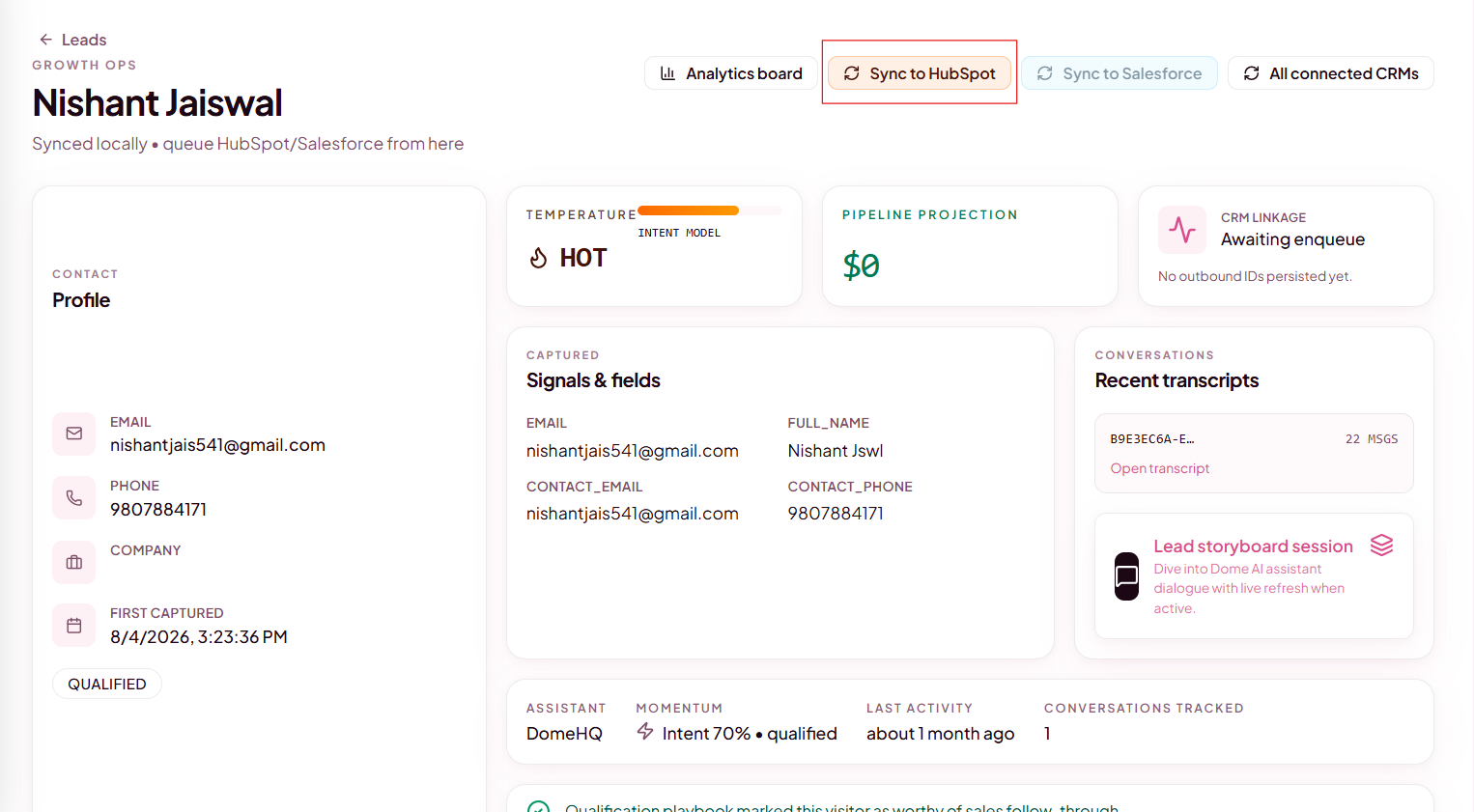
- Manually sync any qualified lead from the Dome lead detail page with Sync to CRM.
Install the app
Dome's HubSpot connection is installed from inside your Dome dashboard — there is no separate download. Installation means authorizing Dome to write contacts in your HubSpot portal via OAuth.
- Log in to your Dome account.
- Open Integrations from the main navigation (/integrations).
- Find the HubSpot card and click Connect.
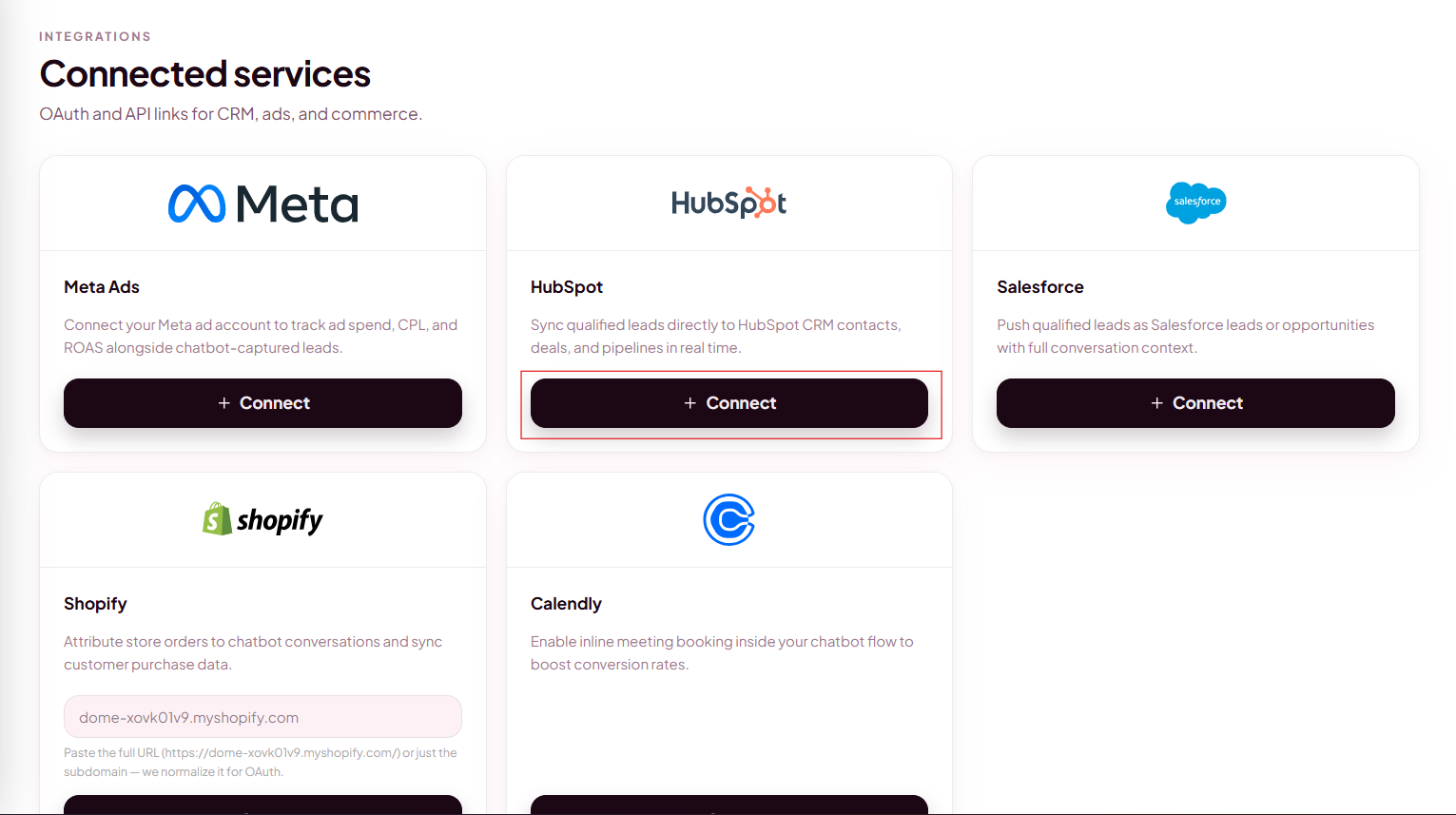
Connect a HubSpot account
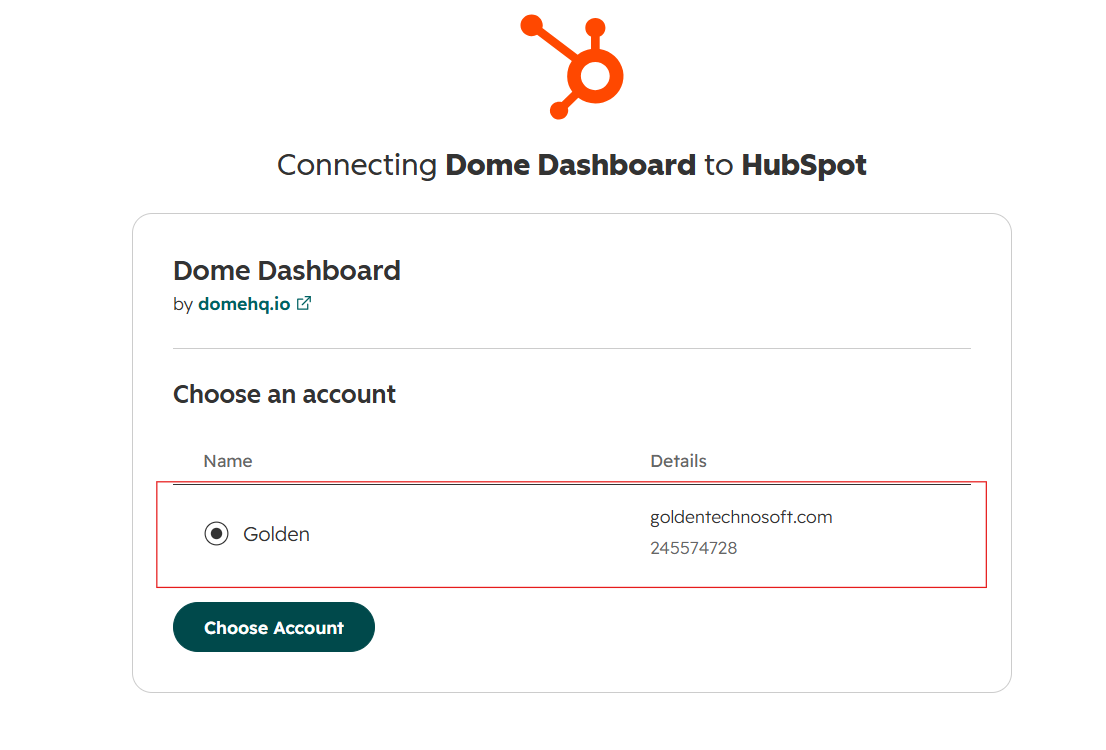
After you click Connect, Dome redirects you to HubSpot to choose an account and approve permissions.
- Select the HubSpot account / portal you want to sync to.
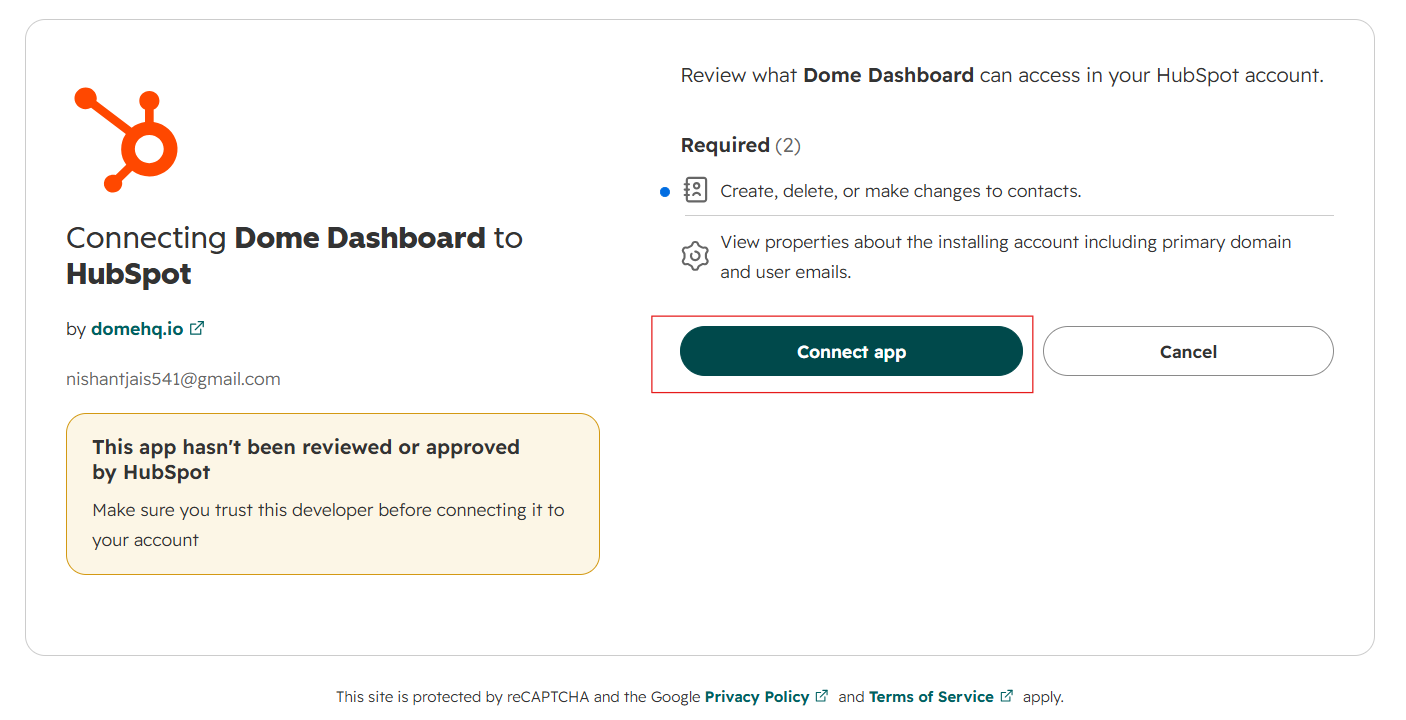
- Review the requested scope on the approval screen. Dome requests
crm.objects.contacts.writeso it can create and update contacts. - Click Connect app (or Authorize) to approve.
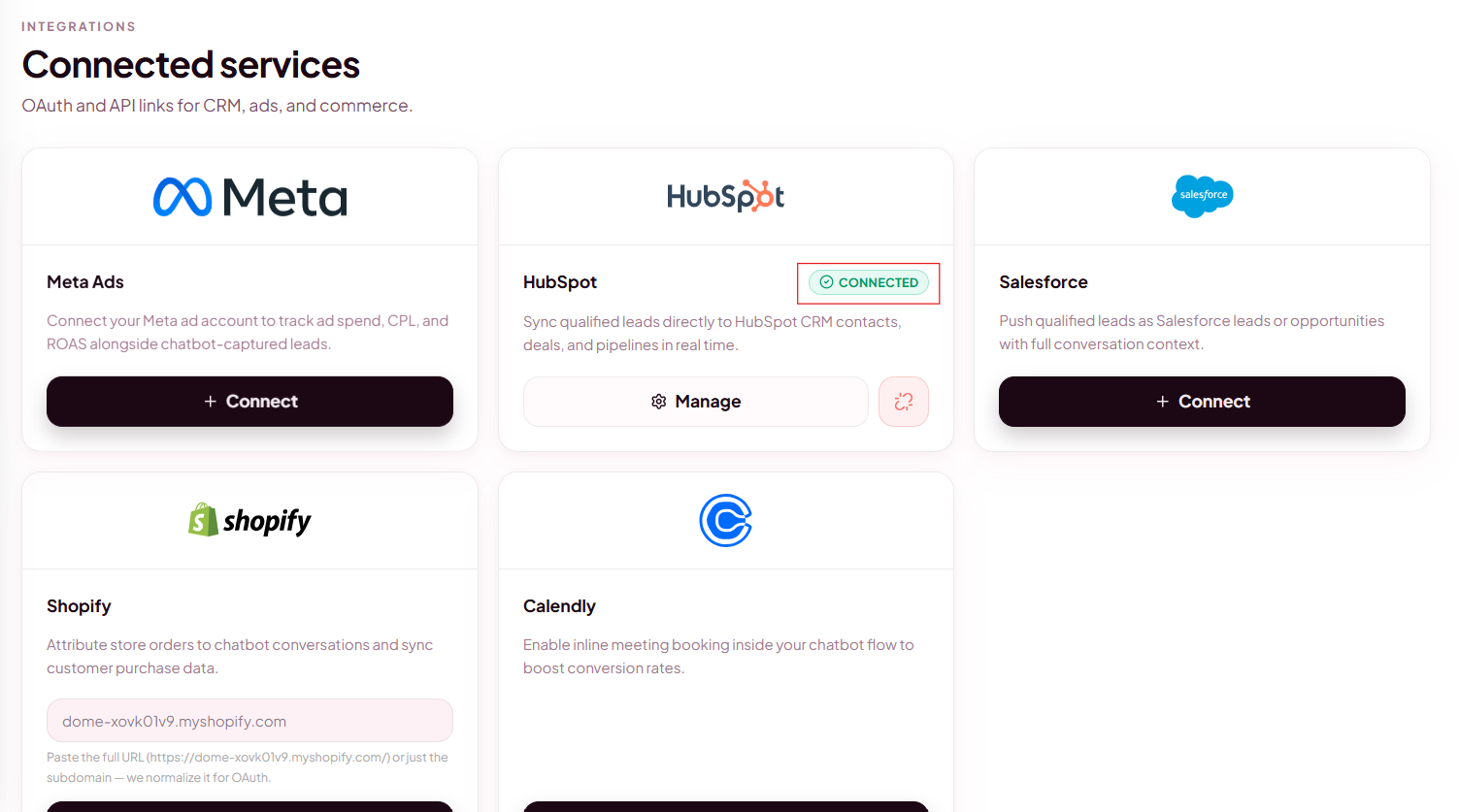
- You are redirected back to Dome. The HubSpot card should show a Connected badge.
Configure the app
Once HubSpot is connected, no extra field mapping is required for the default lead sync. Configuration is handled by your existing Dome chatbot and qualification settings:
- Ensure your chatbot is live and collecting email (and other contact fields) during the conversation.
- Qualify leads according to your Dome qualification rules — only qualified leads are pushed to HubSpot automatically.
- Optionally open a qualified lead and use Sync to CRM to verify the pipeline end-to-end.
Use the app
Automatic sync
When a visitor qualifies through a Dome chatbot, Dome automatically enqueues a sync to every connected CRM, including HubSpot. No manual action is required for day-to-day use.
Manual sync
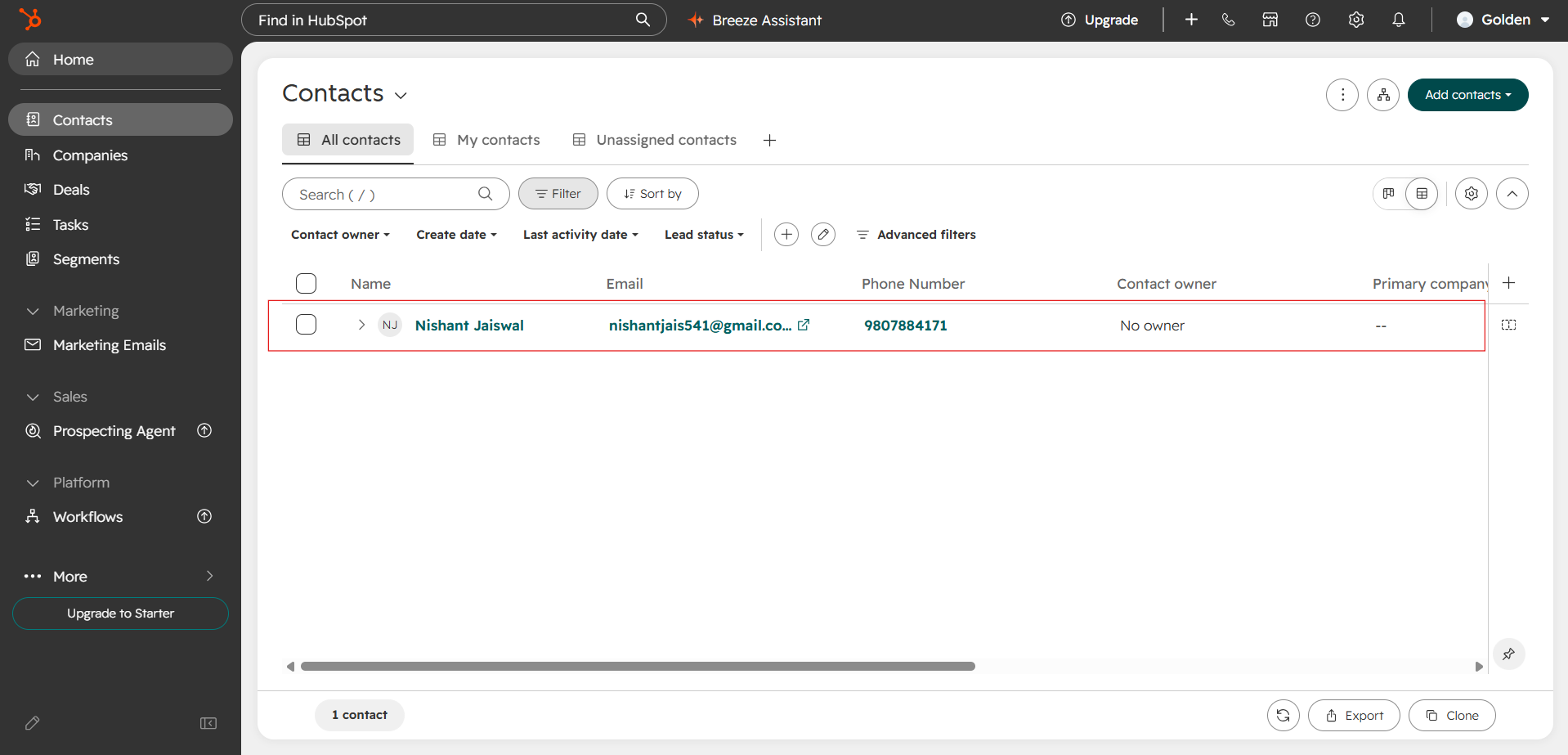
From any qualified lead's detail page, click Sync to CRM to push or re-sync that lead immediately. Dome matches HubSpot contacts by email — existing contacts are updated rather than duplicated when possible.
What gets written to HubSpot
- Email, first name, last name, and phone
- Company name when available
Disconnect a HubSpot account from Dome
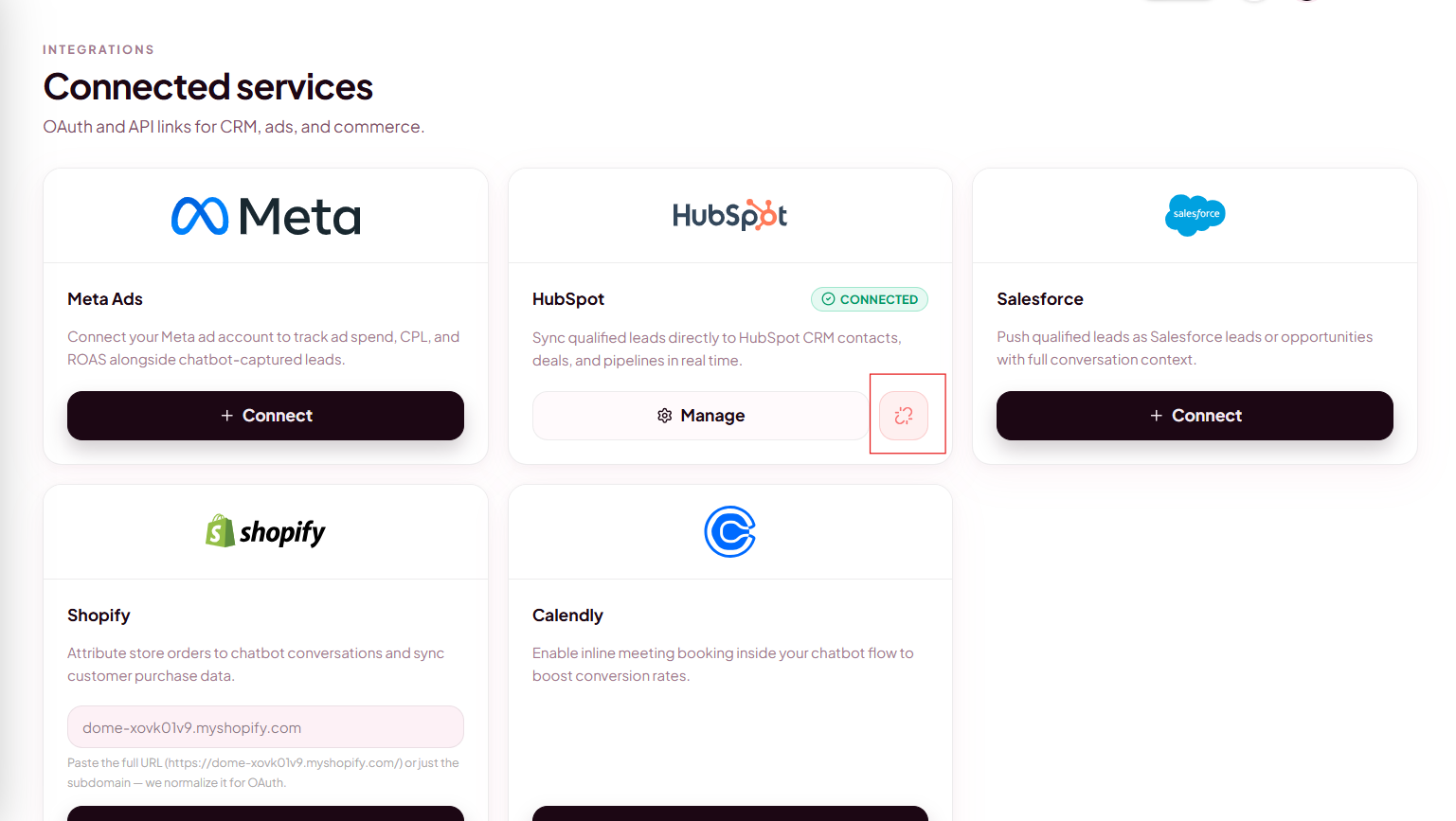
- Open Integrations in Dome.
- On the HubSpot card, click Disconnect.
- Confirm the disconnection. Dome removes the stored OAuth credentials.
Uninstall the app from HubSpot
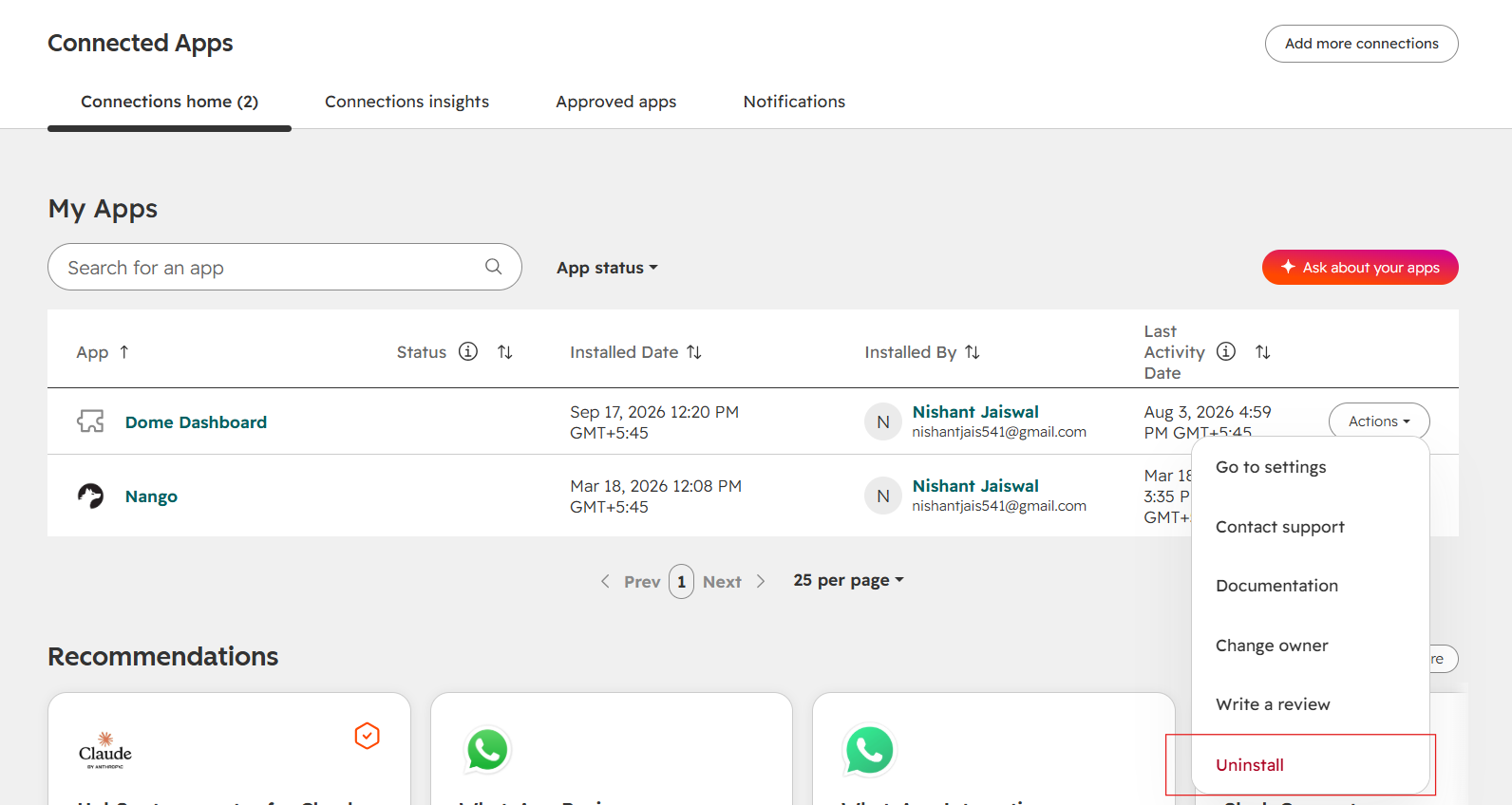
Disconnecting in Dome removes Dome's credentials. To fully remove the app from your HubSpot account, also uninstall it in HubSpot:
- Follow HubSpot's instructions to uninstall connected apps: Uninstall an app in HubSpot.
- In HubSpot, go to Settings → Integrations → Connected Apps, locate Dome, and uninstall if listed.
Potential consequences to user data
- Disconnect (in Dome): Dome stops writing new contacts. Existing HubSpot contacts remain. Stored HubSpot tokens are deleted from Dome.
- Uninstall (in HubSpot):HubSpot revokes Dome's access. Future API calls fail until you reconnect. HubSpot records previously written by Dome remain unless you delete them manually in HubSpot.
- Dome does not delete HubSpot contacts when you disconnect or uninstall.